1. Getting started
You can start right away — no sign-up or login. The app has three main areas.
- Home — your recent memos and today's to-dos at a glance.
- Memo — create a memo pad and write in it like a chat.
- To-do — create a list and check items off.
The tabs sit at the bottom of the screen on a phone, and on the left when the screen is wide. On a wide enough screen, the list and its contents appear side by side. The magnifier at the top right is Search, and the gear is Settings.
If you are new 1.1.17+ — On first launch you get a Getting started list and two memo pads, Writing memos and Organize & find, so you can learn by tapping around (you can replay them from Try it yourself in Settings). Hidden gestures such as long-press and drag are explained once by an on-screen screen tip the first time you open each screen. Turn them off with Don't show again, and bring them back with Show screen tips again in Settings.
Install: on the web, use Settings > About > Install as an app to open it like an app without the address bar. On Android, get it from Google Play.
2. Memo pads
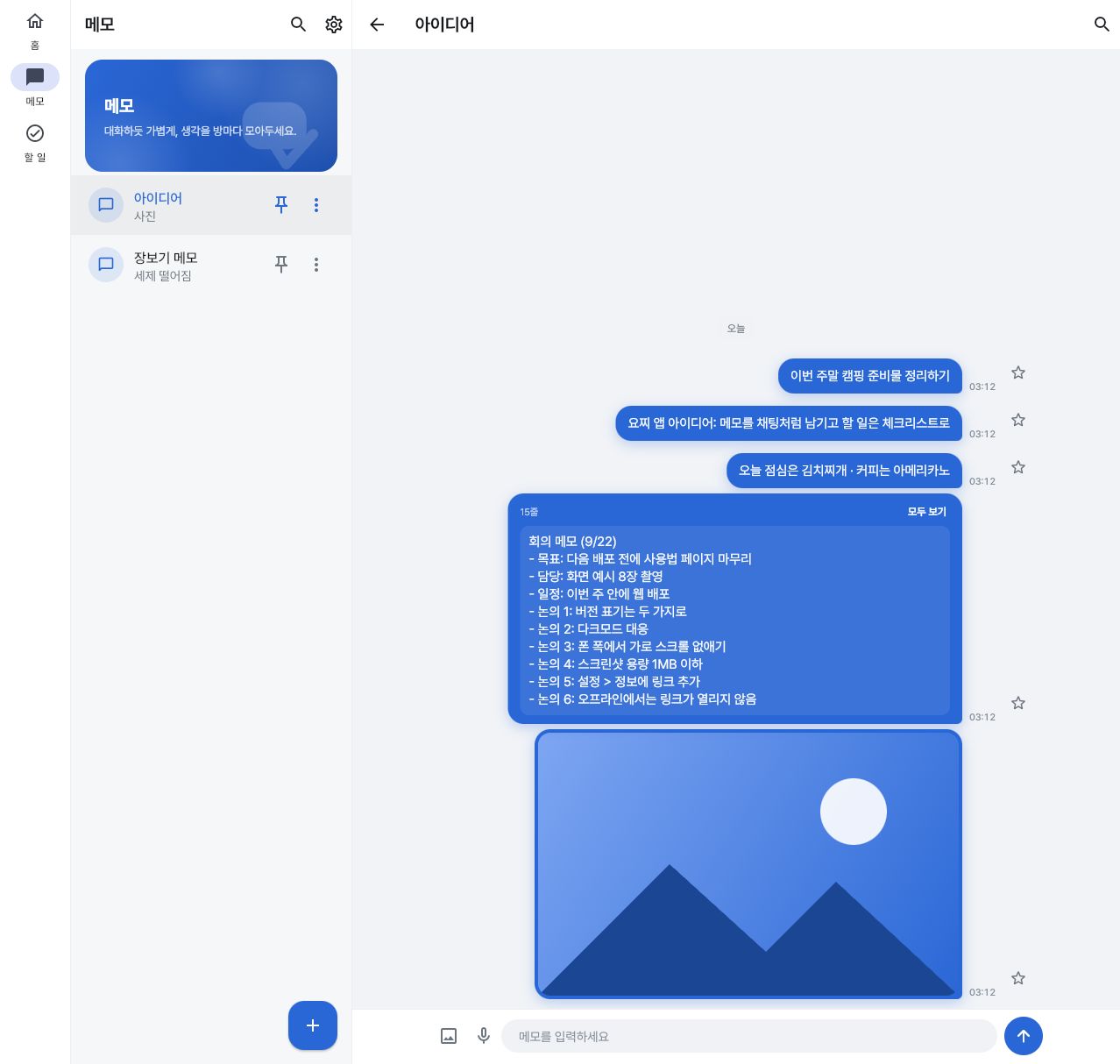
Create and write
- On the Memo tab, tap +, name the pad, and tap Create.
- Open the memo pad and type in the box at the bottom. Press Enter to send and Shift+Enter for a new line. On a phone's on-screen keyboard, Enter inserts a new line, and the up-arrow button on the right sends.
Photos · voice · links
- Photos — pick one with the photo icon at the left of the input box, or on the web paste an image from the clipboard with Ctrl+V 1.1.16+. On Android, the photo icon lets you choose Attach a photo / Paste from clipboard, and images picked from your keyboard's clipboard or stickers also work 1.1.16+. Pasted images can be up to 5 MB. An image is not sent right away; it appears as a preview above the input box so you can add text and send them together.
- Voice — tap the microphone icon to start recording and tap again to send.
- Links — if a message contains a URL, it is shown as a card with a title and thumbnail. On the web, some sites may not produce a card. Tapping a link shows a confirmation once.
Long text and code
Text longer than 12 lines or 600 characters is collapsed; tap Show all to see everything. Code, JSON and Markdown are detected automatically and displayed nicely. If one is detected wrongly, long-press the bubble and change it under Display format.
Long-press a bubble
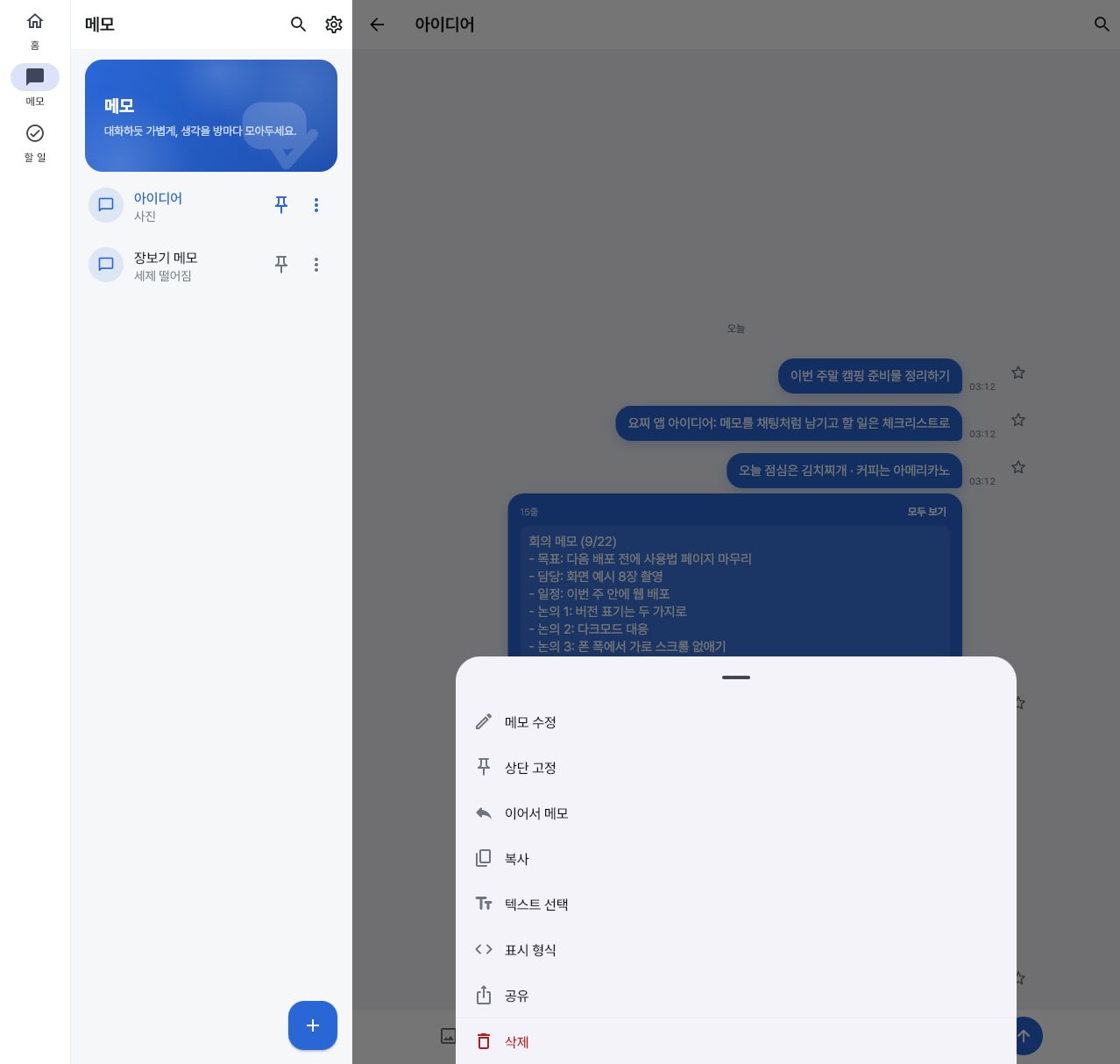
- Edit memo · Delete — after deleting, an Undo button appears briefly at the bottom.
- Pin to top — keep an important memo at the very top of the pad.
- Continue this memo — write as if replying to this memo. Later you can see which memo yours continues.
- Copy · Select text · Share · Display format.
- Tap the star beside a bubble to collect it in Favorites.
Managing memo pads
Tap ⋯ in the list, or long-press a pad, to get Rename · Change color · Edit tags · Lock · Delete. The pin icon keeps a pad at the top of the list. Lock opens with your device's fingerprint or screen lock — if the device has no lock method, you will see a notice. Tap the magnifier inside a pad to search only that pad's memos.
3. To-dos
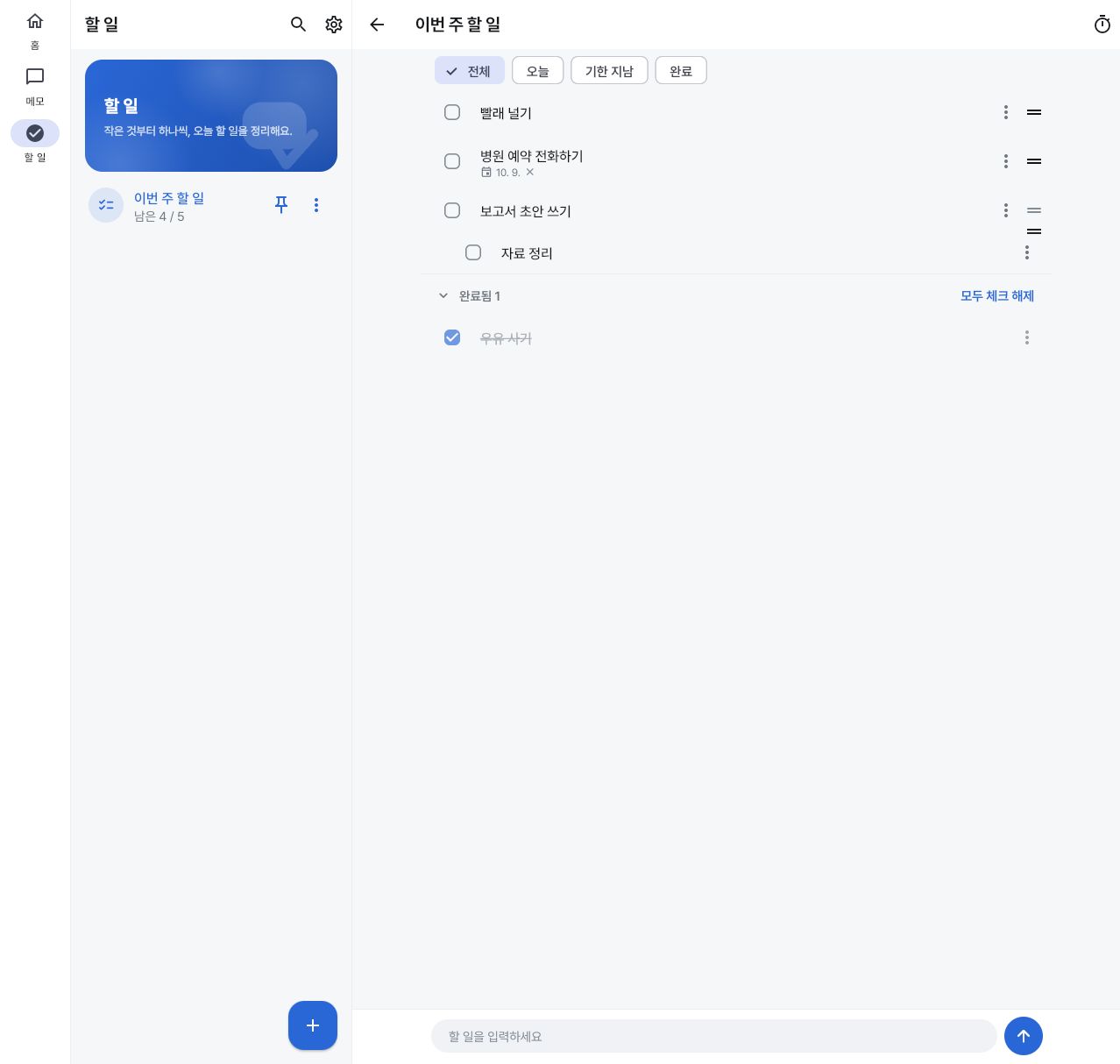
- On the To-do tab, tap + to create a list, open it, and type in the box at the bottom to add an item.
- Tap the checkbox on the left to complete an item. In the Completed section you can uncheck it again.
- Tap an item to open the editor right there. Edit the title, and tap Add details to open a box for optional details. Items that already have details open with the box expanded. Details show up to two lines under the title. Long items show only 3 lines in the list, so tap one to see it all.
- Drag the = handle on the right to reorder.
- Tap Add a to-do at the top of the list to jump to the input box. Items that have subtasks also have Add a subtask beneath them.
Long-press an item (or ⋮)
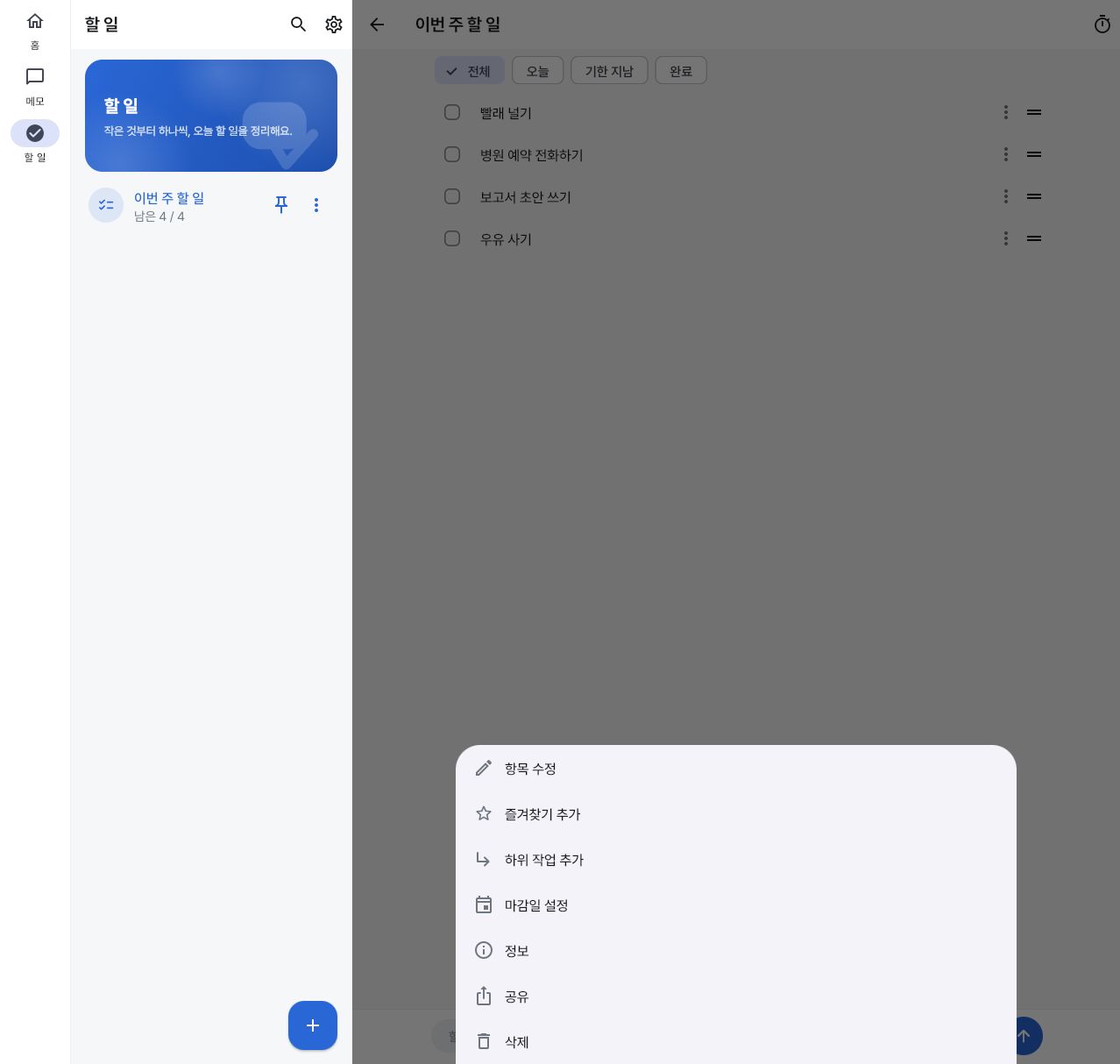
- Add / edit details Next update — open the editor with the details box already open.
- Add subtask — attach a smaller to-do under the item. After you type and Save, the editor stays open and empty so you can add several in a row.
- Move under another item · Move to top level Next update — move an item without subtasks under another item, and bring a subtask back up.
- Set due date — pick a date and it is attached to the item; it turns red once overdue. Clear it with the ✕ next to the date. In the Android app, turn on Due-date reminder in Settings to be notified on the due date.
- Info 1.1.16+ — see when the item was created and completed.
- Copy Next update — copy the item's title and details in one go.
- Add to favorites · Share · Delete (you can undo for 6 seconds). You can also tap the ★ at the right of the row for favorites.
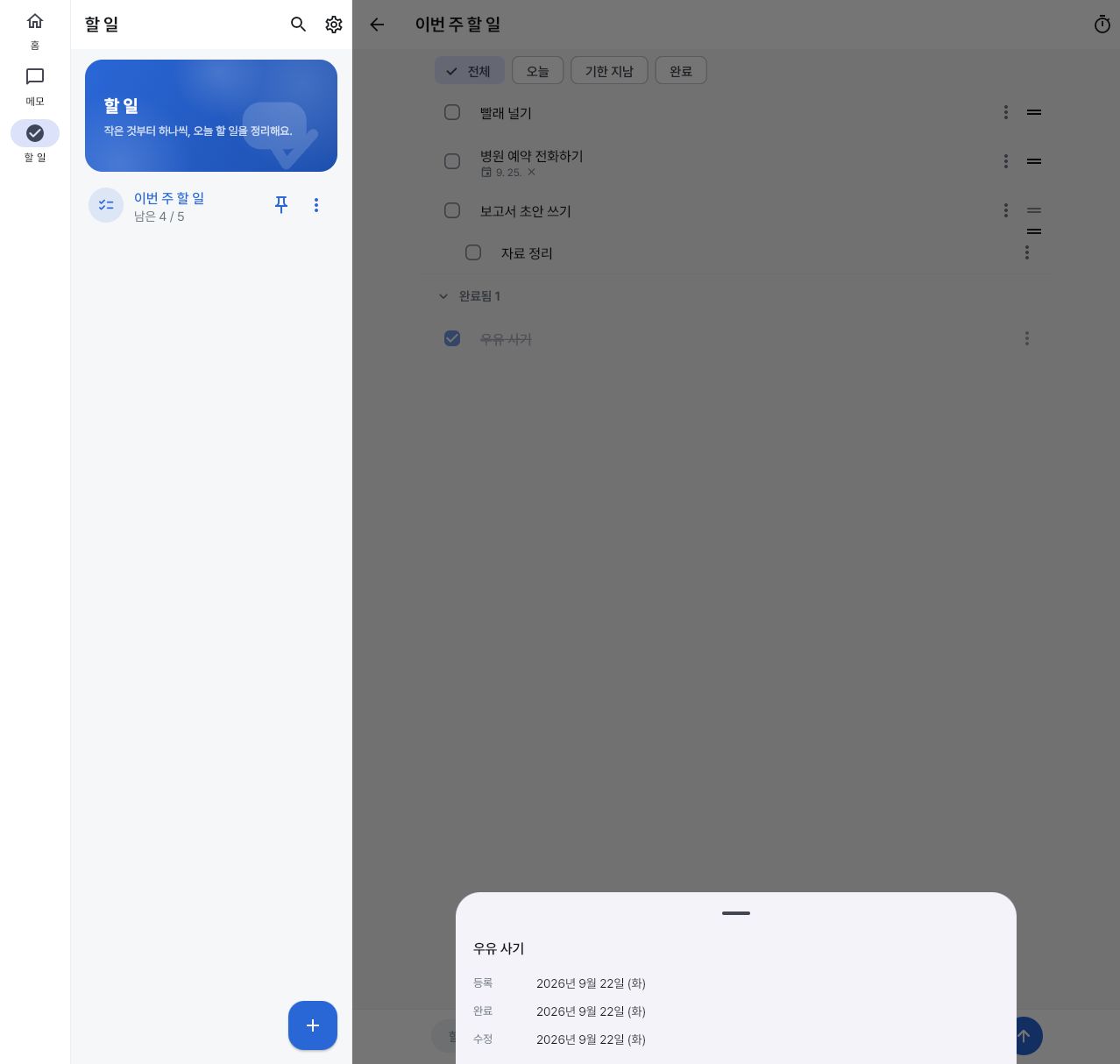
Uncheck all 1.1.17+ — for lists you reuse, like groceries or packing lists, tap Uncheck all in the Completed section header to reset them at once. When you check the last item, an All done prompt appears briefly so you can tap it right there. Both have Undo. It appears only when the filter is All.
Swipe to complete is off by default to prevent accidental completion. Turn it on under Settings > Gestures and you can swipe an item sideways to complete it. Swipe between lists Next update — on a list or memo pad screen, swipe left or right to move to the neighboring one (on by default; turn it off in the same Gestures section). When swipe to complete is on, completing takes priority on top of an item. After you move, a small marker at the top briefly shows which list you are on. The timer icon at the top right of a list is a Pomodoro timer for focus and break time.
4. Search
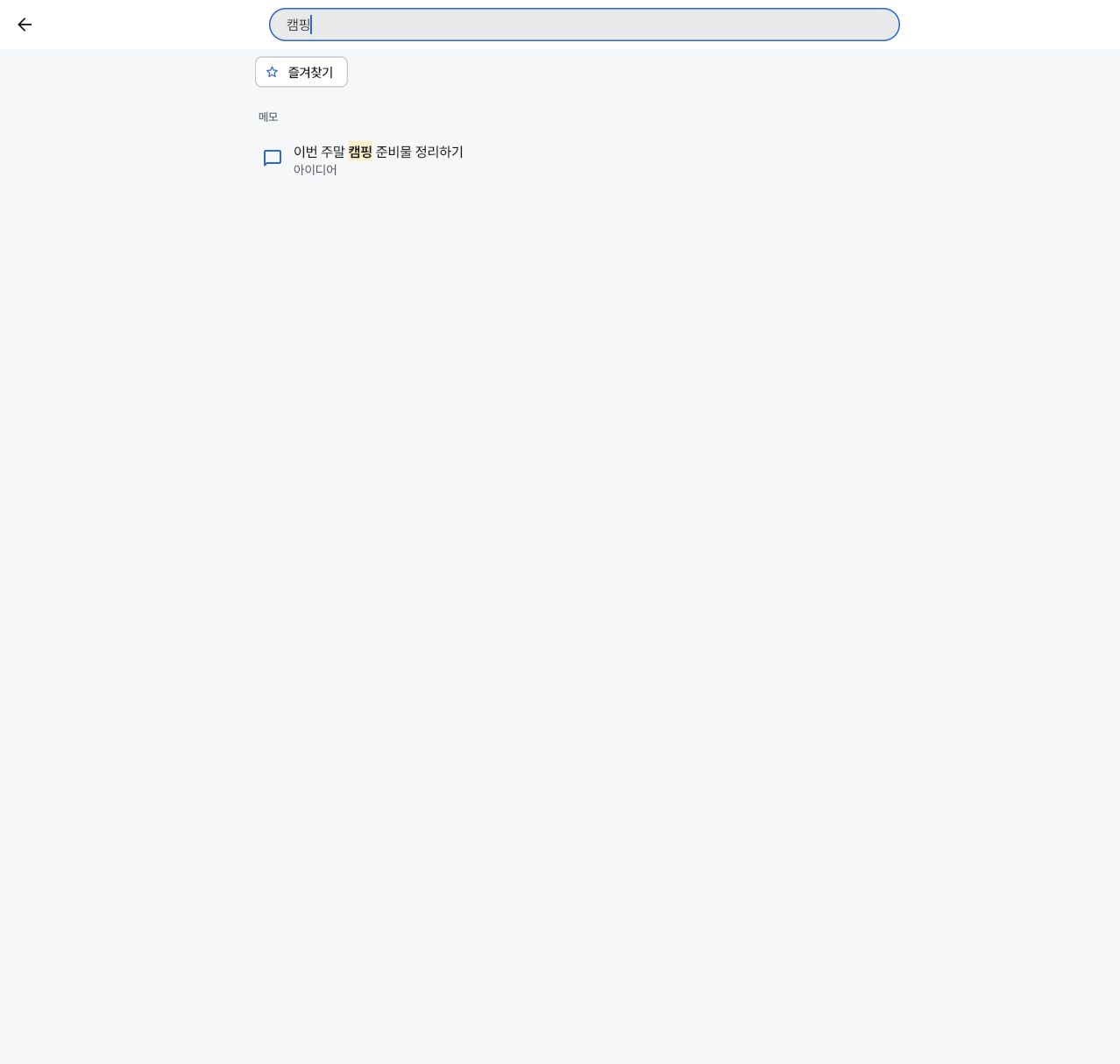
The magnifier at the top right (Ctrl+F) searches memo pads, memos, lists and to-do items at once.
Enter several words separated by spaces to find only items containing all of them. Korean initial consonants (for example ㅋㅍ) also work. Spacing differences, related words and compound words are matched too (for example 차사고 finds 자동차 사고). Korean only. Use the chip at the top to gather your Favorites.
5. Home screen
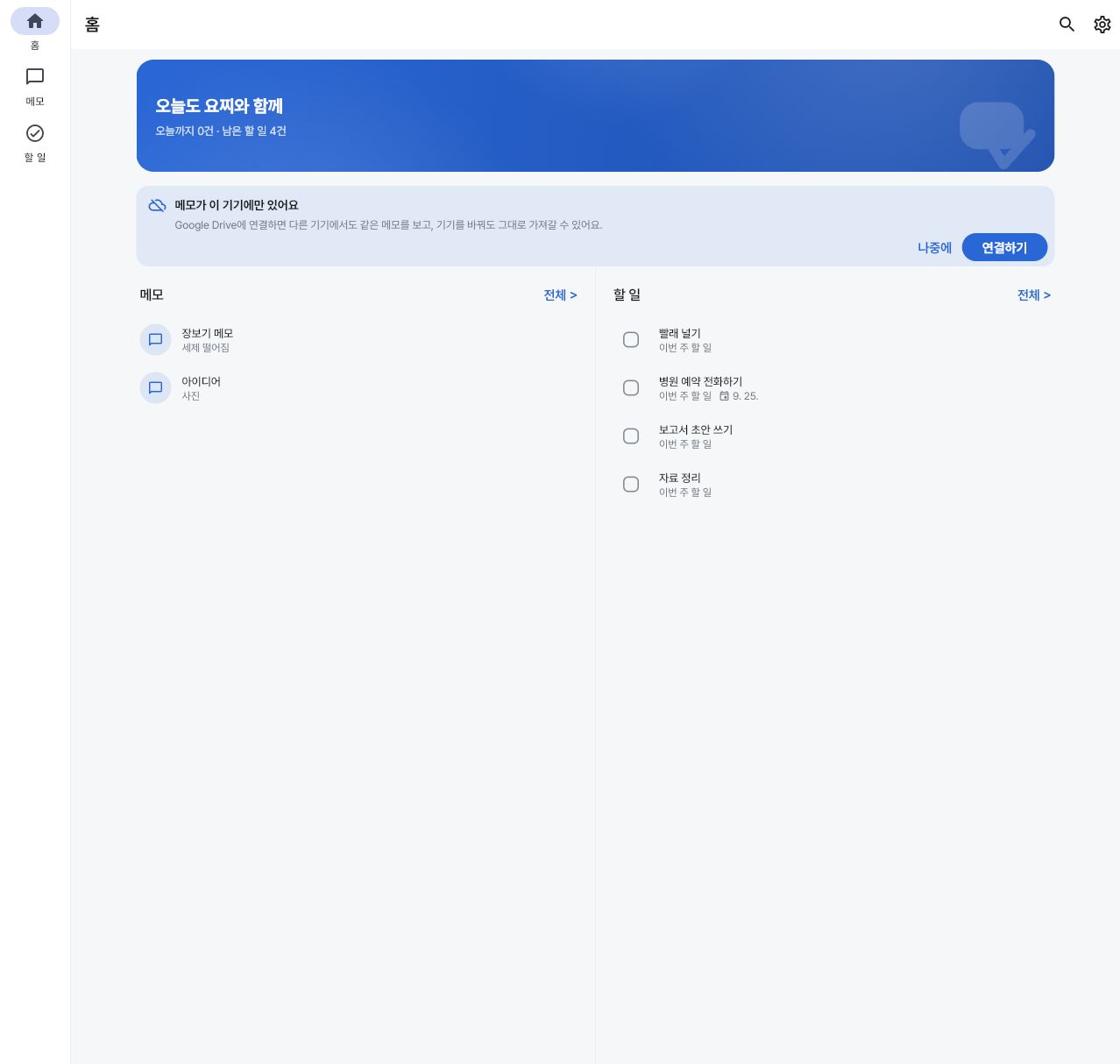
Tap a memo to open its pad, or tap a checkbox to complete it right away. See all > jumps to each tab. Long-press the banner to hide it; you can turn it back on in Settings. The These memos live only on this device card suggests connecting Drive — dismiss it with Later.
6. Sync & backup
- Google Drive sync — Settings > Connect Google Drive. Data is saved only in the app-specific folder of your Drive, and the app does not access any other files. The developer cannot see its contents. Once connected, your devices share the same content. On the web, refreshing the page disconnects it, but for an account you have already approved, tapping again reconnects right away. When the connection is lost, a red notice bar stays at the top of the screen and the sync icon turns into a warning shape — tap Reconnect on the bar. If the icon shows a warning but there is no bar, auto sync keeps failing or this device has not synced for a long time — tap the icon to see why. A device that has not synced for over a year asks whether to merge or clear it first, because items deleted on other devices could come back.
- Sync now — Ctrl+S.
- Backup file — use Export under Settings > Backup to save a file, and Import to restore. Importing replaces this device's content with the backup file's content and cannot be undone.
- Erase my data on this device — use it after using a shared PC or someone else's device. Your Drive backup and other devices' data stay untouched.
- Shared-PC protection — on a device that uses Drive sync, your content stays hidden after you reopen the app (on the web, after a refresh) until you reconnect your Google account. On your own device, turn on This is my device under Settings > Google Drive and nothing is hidden. If someone connects a different Google account, syncing stops so the two accounts never mix, and you are asked whether to erase this device and start fresh. Content you kept without connecting Drive is not hidden, so on a shared PC always use Erase my data on this device before you leave.
For details on how personal data is handled, see the Privacy Policy.
7. Settings
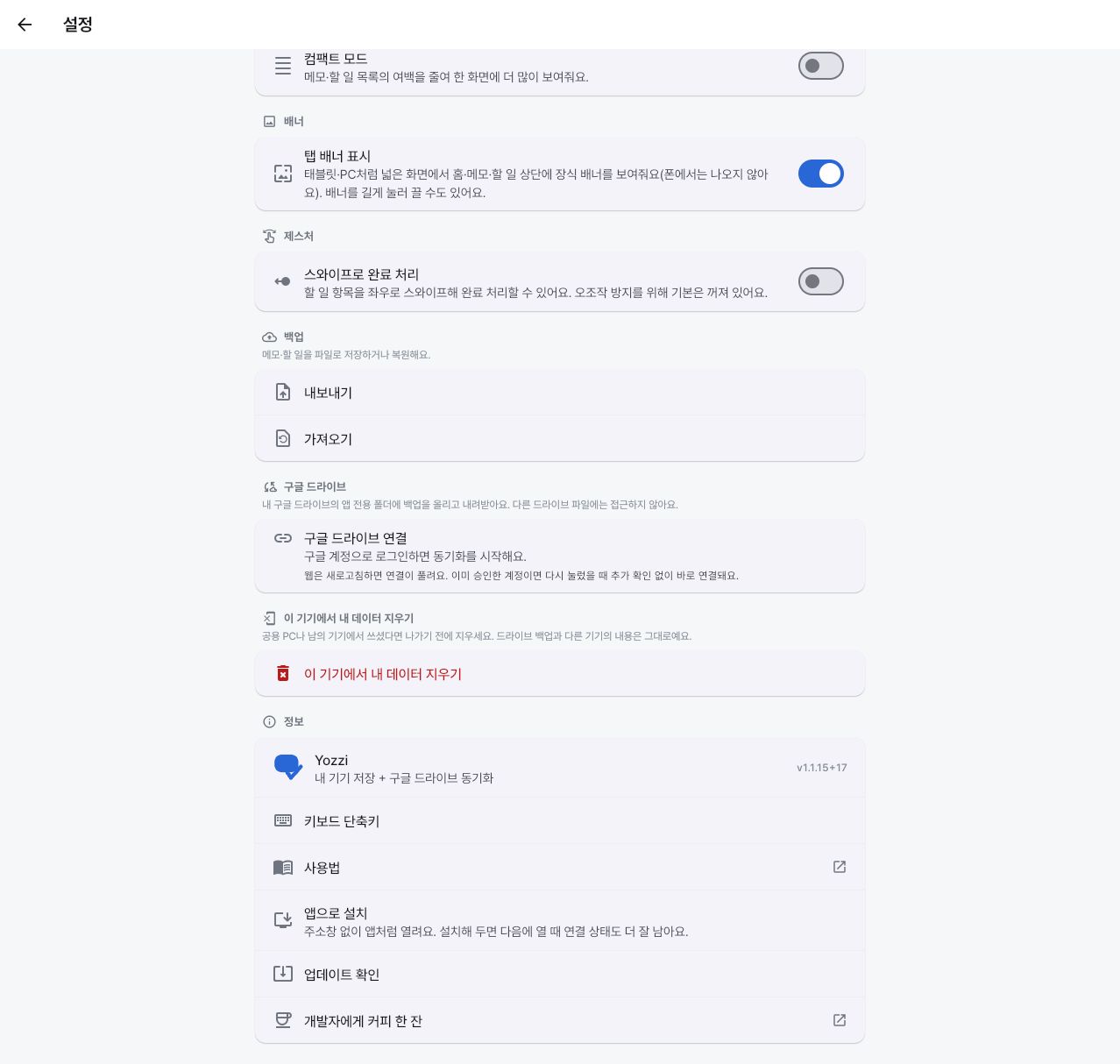
| Item | What you can do |
|---|---|
| Theme · Language | Light / dark / follow system; Korean, English, Japanese |
| Start screen · Tabs | The screen shown when the app opens (default: last viewed tab), tab order (drag to change), show Favorites as a tab |
| Compact mode · Banner | Reduce list padding to see more, turn the decorative banner on wide screens on or off |
| Due-date reminder Next update | Android app only. Turning it on asks for notification permission, then tells you "Tasks due today: N" around the time you set on the due date (9:00 AM by default). It is not exact — it can arrive a few minutes late, up to an hour. Items in locked lists are left out (and the lock screen hides the content). Tapping the notification opens the Upcoming screen. Not available on the web |
| Gestures | Swipe to complete (off by default), swipe between lists (on by default) |
| Try it yourself 1.1.17+ | Replay the tutorial (Getting started · Writing memos · Organize & find) by section, start over from the beginning, show screen tips again |
| Backup · Google Drive | Export / import a file, connect Drive and sync |
| About | Version, keyboard shortcuts, user guide, install as an app (web), check for updates (web) |
8. Keyboard shortcuts
Available on PCs and tablets with a keyboard. You can also see them under Settings > About > Keyboard shortcuts.
| Key | Action |
|---|---|
| Ctrl+S | Sync with Drive |
| Ctrl+F | Search |
| Ctrl+, | Open settings |
| Alt+1~4 | Switch tabs (in the order shown on screen) |
| ↑ ↓ | Move in lists |
| Enter | Open (sends in the input box) |
| Esc | Back / close |
9. More on Android
- App shortcut New memo — long-press the Yozzi icon on the home screen and choose New memo to open the Quick memo pad with the keyboard already up.
- Home screen widget Today's to-dos — long-press the home screen, open Widgets and choose Yozzi to see a summary of today's to-dos. Tap the body to go to To-do, and the New memo button to go to Quick memo.
- Share from other apps — send text or photos to Yozzi with Share and choose which memo pad to put them in.
FAQ
Where are my memos stored?
Only inside this device (or this browser). If you uninstall the app or clear the browser's site data, they disappear with it, so protect important content with a backup file or Drive sync. On Android, if the device's Google automatic backup is on, they may also be restored on a new device.
Can I get back a memo or to-do I deleted?
Only with the Undo that appears briefly at the bottom right after deleting. After that, you need to restore from a backup file or a Drive backup.
My locked memo pad won't open.
The lock opens with your device's screen lock, such as a fingerprint, PIN or pattern. If the device has none, you will see a notice — turn on a screen lock in your device settings first.
The web and app versions are different.
While Google Play is reviewing an update, it is normal for the web and the app to have different versions. New features appear first on the side where that version is released. Check the version under Settings > About.
This page looks different from the app.
Compare the Based on app version at the top with the Deployed app version. If they differ, the screens may look slightly different.